
Template Configuration - HTTP API
Loyalty can connect to an external API endpoint via an HTTP method. Connecting to an external system in this manner comprises two components within Loyalty: an HTTP API Connection Profile and an HTTP Template.
The Connection Profile contains the information needed to connect with the external API endpoint, such as authentication details. See Connection Profile Configuration - HTTP API for more information.
The Template allow you to export data selected from a Query to a designated endpoint via an API request. An HTTP Template encompasses a Connection Profile, a Query, and the schema of the API payload.
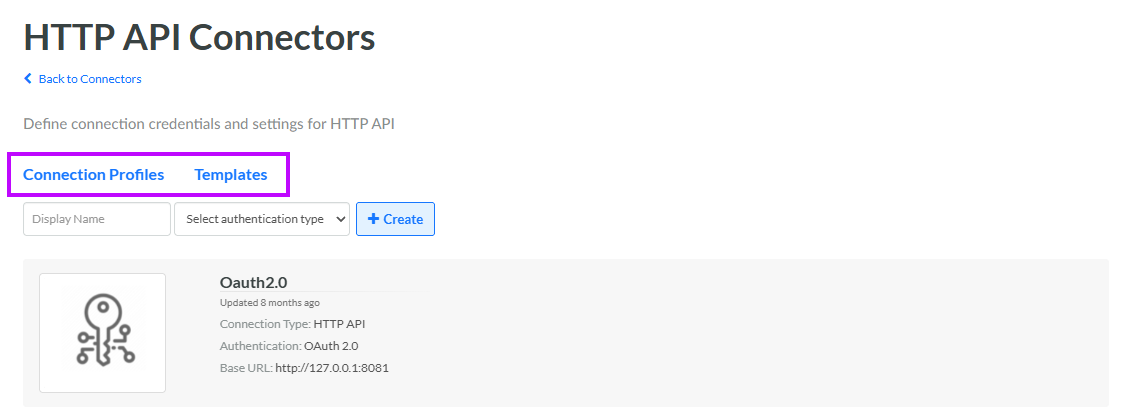
When you select the HTTP API tile on the Connectors screen, the HTTP API Connection Profile screen is displayed. Select the Templates tab.
An HTTP Template includes the following properties:
-
Template Type: Currently, Outbound API is the only supported Template type.
-
Label: Enter the display name of the Template.
-
Internal Name: Enter the internal system name of the Template. This field is uneditable by default. To edit the Internal Name, check Edit Internal Name. A confirmation dialog box is displayed; click Ok. Edit the Internal Name value.
-
Resource Type: Currently, Query is the only supported Resource type.
-
Resource Name: Select the desired Query (see Getting Started with Queries for more information).
Note: After selecting the Query, you can optionally click the Download icon. The platform downloads the column headers from the selected Query, which makes it easier populate the URL Path, Header, and Body sections with dynamic values.
-
Connection Profile: Select the desired HTTP API Connection Profile.
-
HTTP Method: Select an HTTP method: POST, GET, PUT, PATCH, or DELETE.
Note: The GET method will not retrieve data from an external system; when using the Outbound API Template Type, Loyalty will only send data to an external system.
-
Payload Type: Currently, JSON is the only supported Payload type.
-
Batch Size: This option is used to determine how many records are included in each API call. If the template Body is Form Data, then the batch size must be "1." If the template Body is Raw, than you can select any batch size. See Body below for more details.
-
Template Language: Select either (%) Notation or Handlebars (see Handlebars Reserved Keywords below for additional information).
-
URL Path: This field is used to define the API endpoint. If the Base URL in the selected Connection Profile is populated, then the platform will append the value you enter in the URL Path field to the value in the Base URL to form the complete endpoint URL for the API calls. If the Base URL in the selected Connection Profile is empty, then the URL Path field must contain the complete endpoint URL.
Note: If you are using values from the selected Query in the URL Path, you can click Select Query Column and select a Query column header. The platform inserts the string into the URL, correctly formatted using the specified Template Language.
Request Headers
Header parameters are included in the request header. Usually, the header includes authorization parameters. To define Header parameters, click Add within the Request Headers section, then enter the following information:
-
Check Enabled.
-
Within the Name , enter the name of the field.
-
In the Value field, enter the value of the field as either plain text or as a dynamic value created with the selected Template Language. If you are using values from the Query, you can click the Search icon and select a Query column header. The inserted string is already formatted using the specified Template Language.
Note: If the selected Batch Size is greater than "1," then you should not populate the Header parameters with dynamic values from the Query result set, since a call with more than one record still has only one set of Header parameters. If you do this, the headers will not populate with the dynamic values.
-
If you check Static, then whatever text is typed in the Value text box will be sent in the API call. Unchecking Static means that the value will be evaluated using the specified Template Language, and the result will be dynamically derived for each API call.
Repeat the above steps as needed to define additional Header parameters. Optionally, if you need to remove a key / value pair, click the Delete icon next to it.
Body
Frequently, API calls include a JSON object in the request body, consisting of one or more key / value pairs. When defining the request Body parameters, Loyalty allows you to enter these key / value pairs directly into the user interface. Optionally, you can also enter the "raw" JSON object. If you don't submit the raw JSON object, the platform submits the request as form data.
 Enter as Form Data
To enter the request Body parameters as Form Data, select Form Data. Click Add within the Body section, then enter the following information:
-
Check Enabled.
-
In the Name field, enter the name of the field.
-
In the Value field, enter the value of the field as either plain text or as a dynamic value created with the selected Template Language. If you are using values from the Query, you can click the Search icon and select a Query column header. The inserted string is already formatted using the specified Template Language.
-
If you check Static, then whatever text is typed in the Value text box will be sent in the API call. Unchecking Static means that the value will be evaluated using the specified Template Language, and the result will be dynamically derived for each API call.
Repeat the above steps as needed to define additional Body parameters. Optionally, if you need to remove a key / value pair, click the Delete icon next to it.
Enter as Raw JSON
To enter the request Body parameters as raw JSON, select Raw.
Enter the JSON object within the Request Body field. Any dynamic values in the JSON must use the specified Template Language to resolve the values. If you click Select Query Column, a drop-down menu of Query columns is displayed. Select the column you want to insert into the JSON. The inserted string will be in the format of your specified Template Language.
To validate the JSON, click Validate JSON. The validation results are displayed in a pop-up in the lower-right corner of the screen.
Preview HTTP Template
The HTTP Template feature provides a Preview feature that allows you to test your API schema.
To preview your HTTP Template:
-
Within the Preview Settings section, optionally enter a URL in the Test URL field. If you provide a test URL, the platform will send the test message to this URL. If you leave this field blank, the platform will send the test message to the URL entered above in the URL Path field.
-
Click Generate Preview. The platform generates a cURL statement in the Code Preview pane using the settings defined in the Template.
-
In the Batch field, specify which batch you want to use in the generated preview. Because batch sizes can be very large, the platform displays only the first ten records in each batch. Each record is displayed in the pane, and you can expand each record to see its values. To see another batch, change the Batch number and click Generate Preview again.
-
Click Test Request to execute the cURL statement in the Code Preview pane. The response message is displayed in the Response section.
Handlebars Reserved Keywords
Loyalty supports the use of the Handlebars templating language to build HTTP Templates. In addition to the keywords and namespaces in Handlebars, Loyalty supports the following custom keywords.
| Keyword | Description |
|---|---|
| {{records}} | Used in the {{#each}} loop, this keyword sets the context to the individual record. |
| {{emptyToNull}} | Automatically transforms empty values to null. |
| {{columns}} | Generates a comma-separated list all of the column headers. |
| {{#iff}} {{/iff}} |
An "if" statement with conditions. The format is "<string>" "<operator>" "<string>". It supports the operators:
|
| {{completed}} |
Resolves to "true" on the final batch, and "false" on any other batch. Note: When using the Test Preview feature, this value will only resolve to null. It will not resolve to "true" or "false" until executed in a call. |
